Choose what you need to keep
A PDF report, a spreadsheet, and a slide deck carry information in different ways. Before converting one, decide what the next reader needs. An editable article needs headings and readable paragraphs. A table needs values that can be checked against the original. A handout needs page breaks that work when someone opens or prints it.
VeloWrite converts through a Markdown representation. That makes the text available for editing and later delivery, but it also means that a complex page design may be simplified. Keep your original file. If exact placement, formulas, or embedded media are essential to the job, compare those requirements with the format mapping below before converting a whole batch.
Check the tested input-to-output matrix for format combinations, output behavior, and current limits.
Understand the format mapping
Converter accepts DOCX, PDF, XLSX, PPTX, TXT, HTML, and PNG, JPEG, WebP, and BMP images. Markdown can be exported as PDF, DOCX, HTML, TXT, XLSX, PPTX, or a ZIP of PNG pages. A batch handles up to eight files in order and records each result. Choose an output that matches how the next person will use the document.
| Source | Useful material to recover | What needs review |
|---|---|---|
| DOCX | Headings, emphasis, lists, links, tables, captions | Complex layout and embedded objects |
| Extracted text; OCR for scanned pages | Reading order, columns, recognition errors | |
| XLSX | Worksheet tables and cached cell values | Formulas, charts, and meaning of values |
| PPTX | Slide text and tables as sections | Layout, visual relationships, media |
| Images | English or Simplified Chinese OCR text | Names, numbers, punctuation, line breaks |
A worked example: PDF to HTML
Suppose you have a PDF field report and need a readable HTML copy. Open Converter as its own workspace, select the PDF, choose HTML as the output format, and choose an output folder. Before starting, check the source name and destination. The source PDF stays separate from the generated HTML file.
- Open Converter in the sidebar.
- Choose the source PDF and select HTML (.html).
- Choose the output folder and check the planned result.
- Click Convert to folder, then inspect the generated HTML.
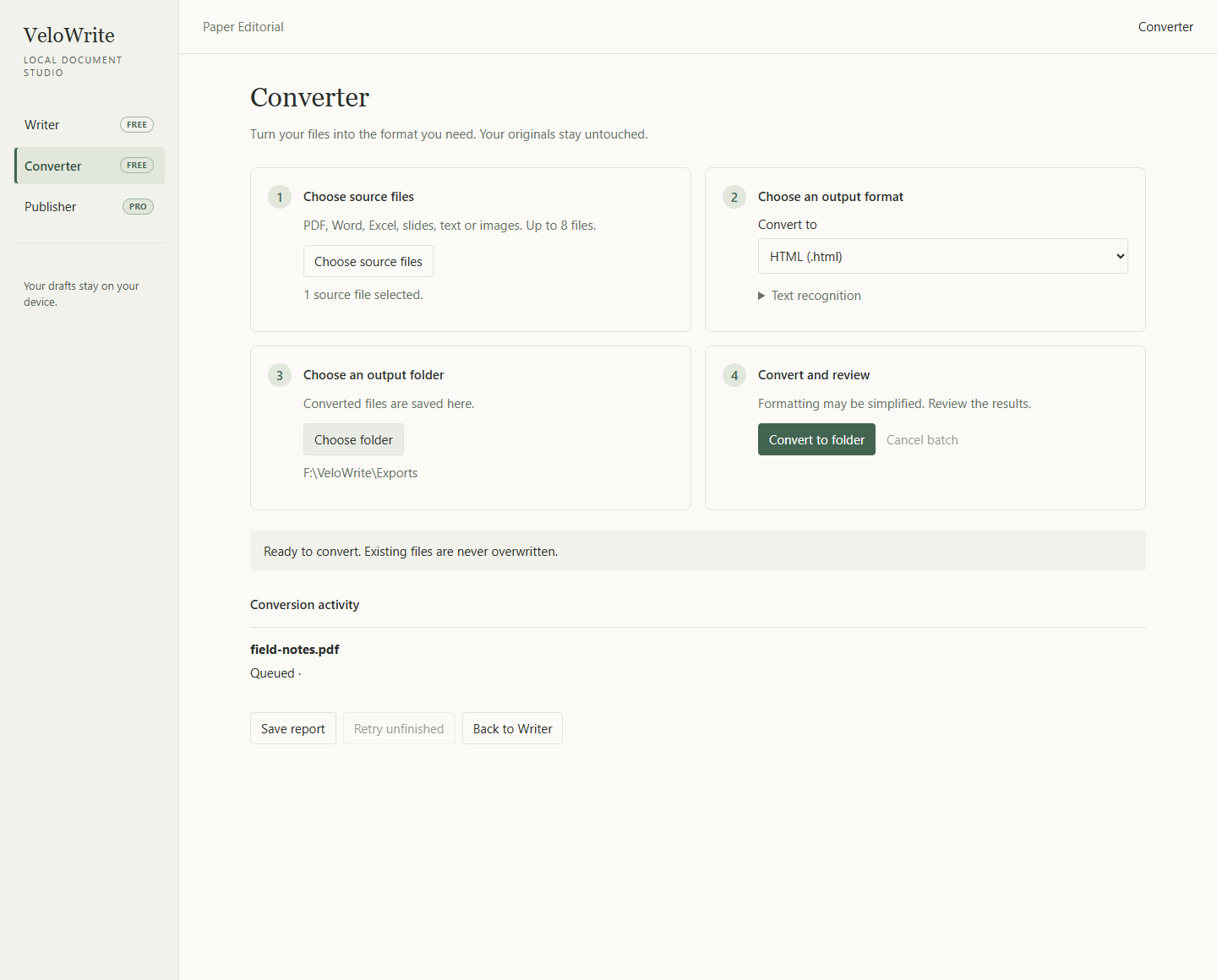
When conversion finishes, use the result entry's Open file action to inspect the HTML output. Open folder is useful if you need to attach the result to an email or move it into another project. Check the extension in the result name: opening the source PDF again would not tell you whether the HTML conversion worked.
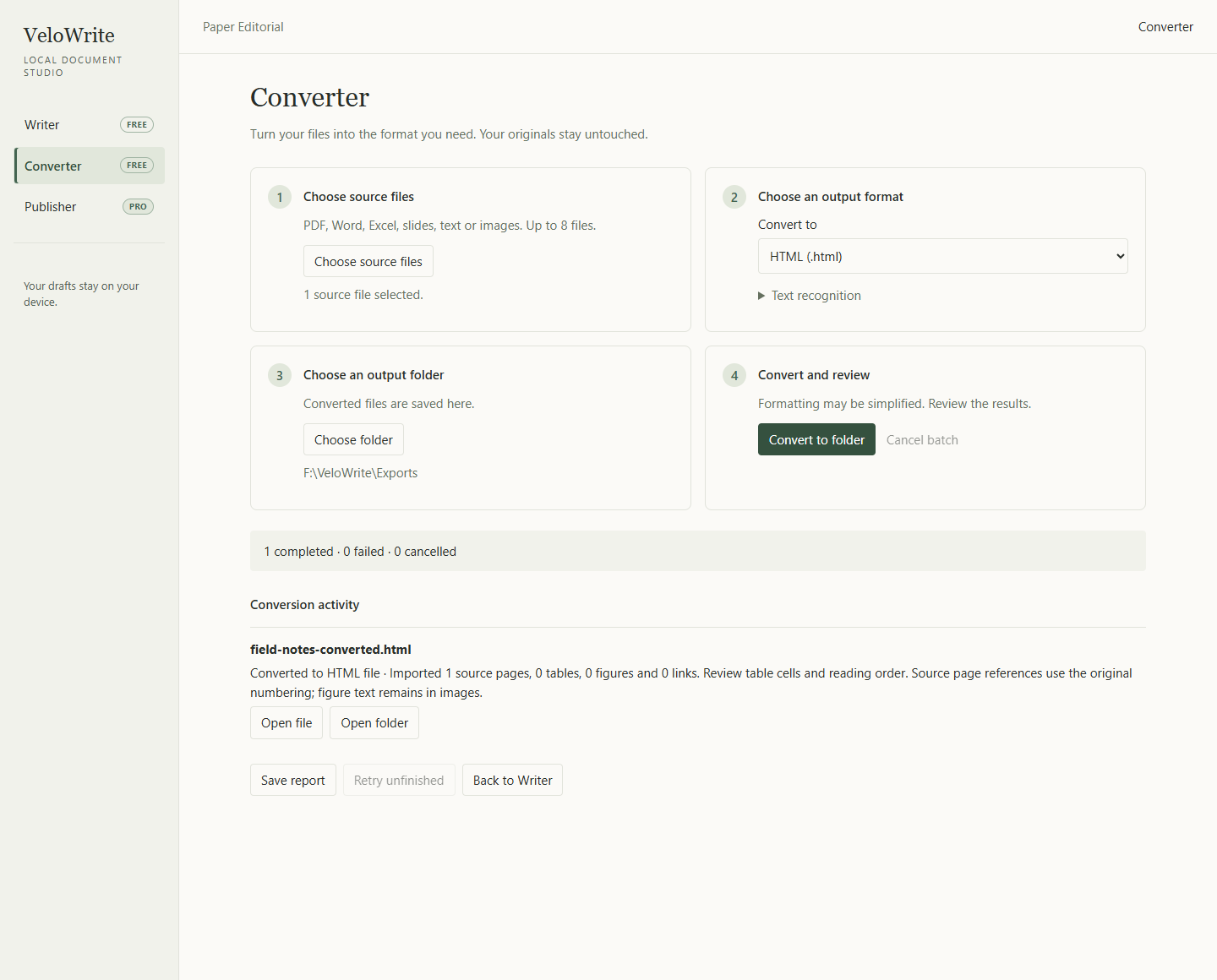
Review the content in a deliberate order
Start with the opening paragraph and heading order. A multi-column PDF can produce text in an unexpected reading sequence even when all the words were extracted. Then check lists and tables. Follow a link that matters to the document instead of assuming its visible label proves the destination is correct.
For scanned sources, inspect the OCR result against the image. English and Simplified Chinese recognition are supported, but a supported language does not guarantee every character is right. Pay particular attention to names, dates, decimal points, and identifiers. A plausible-looking sentence can still contain a wrong number.
For spreadsheets, compare a representative worksheet and several important cells. Imported cached values do not preserve a live calculation model. For slides, check that the extracted sections still make sense without their original positions and diagrams. If you need the original workbook or presentation behavior, deliver the source alongside the text-based result.
Choose a useful export after editing
PDF is useful for a paginated reading copy. DOCX lets a recipient continue in a word processor. HTML suits a browser-readable document, while TXT removes formatting. Workbook and slide exports turn Markdown tables or sections into their corresponding document structures. A PNG page archive provides rendered pages as images.
Open the exported file in the application your recipient is likely to use. Check page breaks for PDF, table widths for DOCX, and heading structure for HTML. Conversion does not make every format interchangeable. Decide which elements need to survive, then check those elements in the actual output.
Use a batch after checking one representative file
Try one document before queueing several similar ones. If that sample needs manual cleanup, account for the same review across the batch. Once processing finishes, read each file's result. A successful item does not imply that every input was accepted or every output is ready to share.
Existing destination files are not overwritten. Use a distinct output name or another destination when a prior result already exists. Keep an earlier reviewed copy if you need to compare versions. The conversion history helps you find generated files, but the final content check still belongs in the output itself.
Check limits before starting
Conversions support up to 1 MiB of text plus 6 MiB of validated embedded figures within an 8 MiB Markdown file, and each output file is limited to 16 MiB. TXT and HTML imports accept up to 500,000 bytes; DOCX up to 2 MiB; PDF, XLSX, PPTX, and image inputs up to 8 MiB each. A batch can contain up to eight files and 32 MiB in total. A short document with large images can reach a size limit sooner than a longer text-only document.
If a conversion fails, keep the original and inspect the individual result message. Try a smaller representative source when investigating a size or layout problem. Writer and Converter are free; you can review and edit the recovered Markdown without subscribing. See the quick conversion guide for the task steps and troubleshooting for a useful support report.