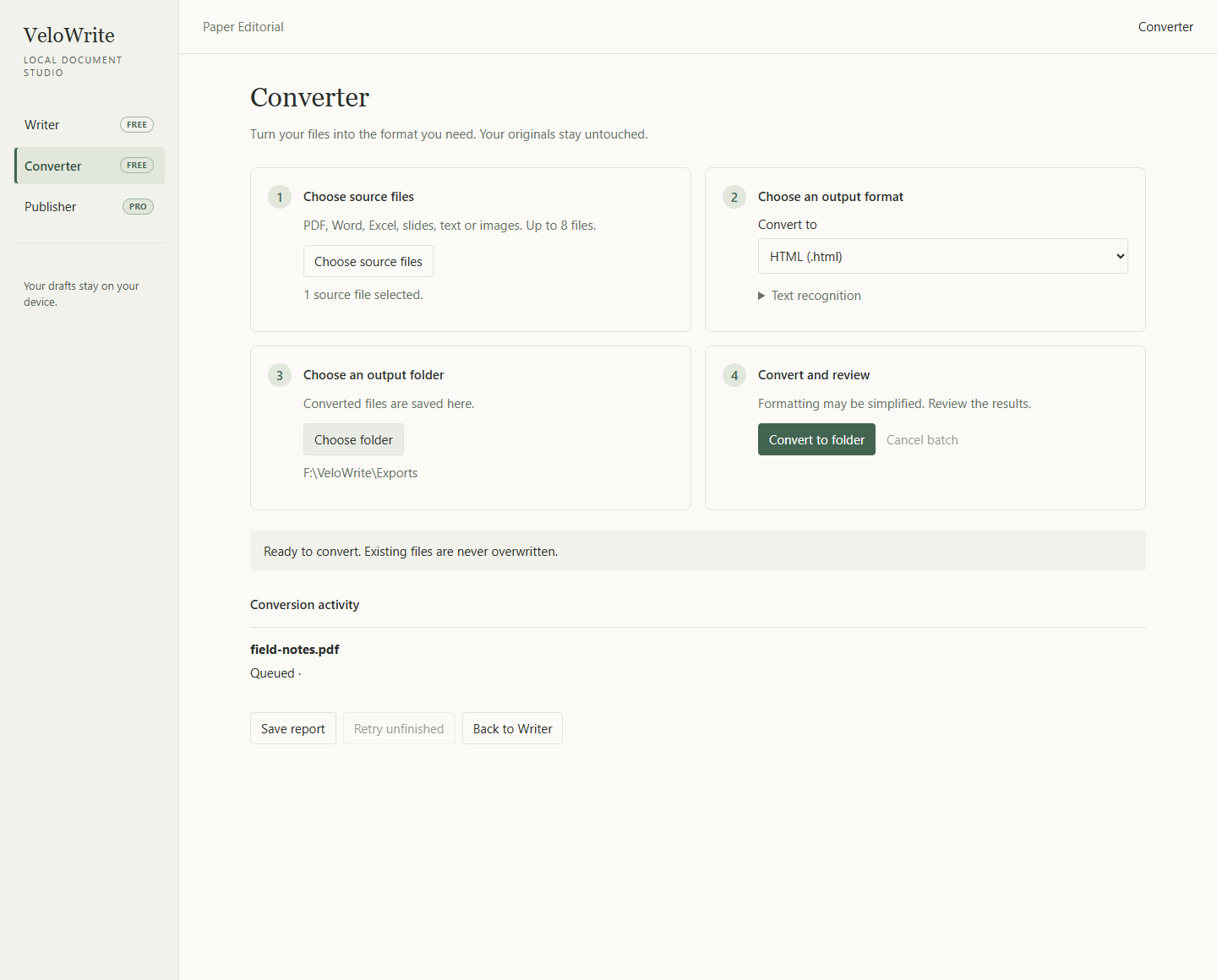
1. Open Converter
Converter is a separate workspace beside Writer and Publisher. Choose the source type that matches your document, then choose the files. A batch can contain up to eight files.
2. Choose an output format
Use Markdown when you want to edit the extracted content. Choose HTML for a browser-readable result, PDF for a paginated document, or an Office format for a compatible editing workflow. Available choices depend on the selected input.
3. Select an output folder and convert
Choose a folder you can write to. Keep the source files until you have reviewed the outputs. Watch each item's result rather than assuming that one successful file means the whole batch succeeded.
4. Open the generated file
Use the result actions to open the output file or its folder. Check the output extension: a PDF converted to HTML should produce an HTML file. The source PDF is still the source, even when its name appears in the job.
What to check by format
| Source | Review in the result |
|---|---|
| Text-based PDF | Paragraph order, page breaks, columns, and missing text. |
| Scanned PDF or image | OCR spelling, punctuation, numbers, and reading order. |
| DOCX | Headings, lists, tables, and content that originally depended on page layout. |
| Spreadsheet | Cell values, row and column labels, and the selected data range. |
| Presentation | Slide order and extracted text. Do not expect the original slide design to survive a text conversion. |
If part of a batch fails
Read the failed item's message. Keep successful outputs and use Retry unfinished when it is available. The original selected sources must remain available in that session. A limit or unsupported document needs a different input or a smaller task; repeatedly submitting the same file will not remove the limit.
Format overview · Conversion article with screenshots · Troubleshooting